Set SetPassOPEN: How to Play
MENU
PLAYER HANDBOOK

How to Play

Follow the table from account setup through the final result.

MANUAL DUELING

The smoothest first duel

Verify your account, save a legal deck, practice the controls in Solo, then enter Duel Lobby. Keep sound on and use the Duel Log whenever you miss an action.

1. Set up your account

  1. Sign in with email and verify it. The first-login prompt asks for a screen name; choose Maybe later to explore Deck Builder and Solo, or save a name to play against others.
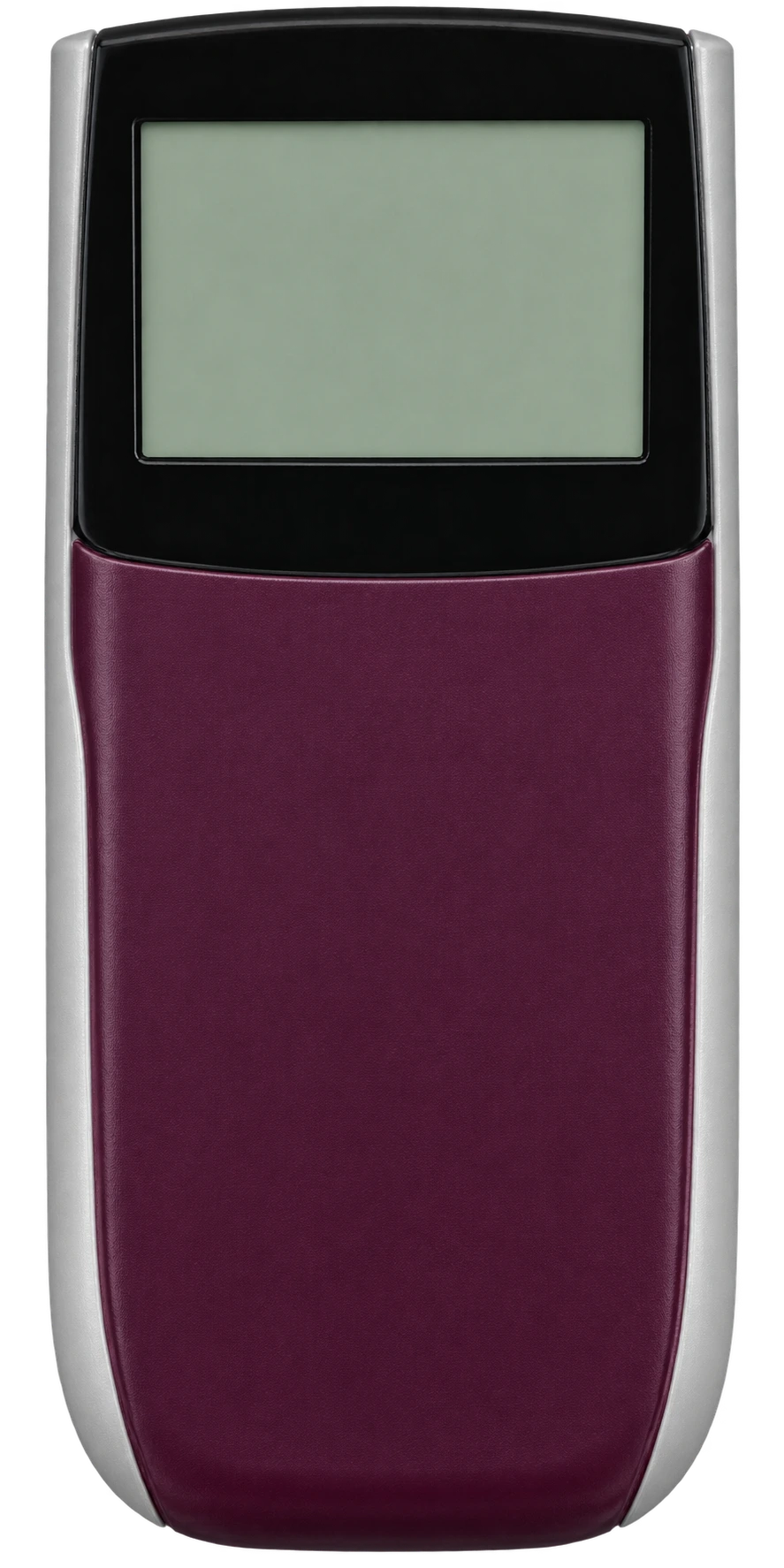
  2. Choose your sleeves, calculator appearance, and Deck/Graveyard order and Deck rotation in Profile. Sound, alerts, and accessibility options are in Settings.
  3. Use Landing Page to return to the main menu. All main pages are listed in the top navigation, which is hidden during an actual duel.
  4. Set Set Pass is desktop-only and manual: players resolve card effects, rulings, battle damage, and required card movements themselves.

2. Build a legal deck

  1. Open Deck Builder and choose Critter, GOAT, Perfect Circle, or Edison. Formats are always listed oldest to newest.
  2. Search by name, card text, type, Attribute, Level, ATK, DEF, restriction, or sort order. Hover a card to inspect its format-correct effect.
  3. Click a result to add it; right-click to add it to the Side Deck. Right-click a card already in your deck to remove it.
  4. Critter, GOAT, and Perfect Circle include every legal Fusion automatically. Edison uses a manually built Fusion/Synchro Extra Deck with a 15-card maximum.
  5. Main Decks need at least 40 cards. A Side Deck is either empty or exactly 15 cards. Copy limits apply across Main, Extra/Fusion, Side, and alternate artworks.
  6. Import or export YDK files, save drafts, duplicate decks, and use the legality report to fix anything before entering a table.

3. Find a duel

  1. Open Duel Lobby for casual tables, ranked matchmaking, and duels available to watch.
  2. For casual play, pick a format and legal deck, choose Single Duel or best-of-three Match, add an optional note, and decide whether spectators may watch.
  3. For ranked play, open Ranked Matches inside the lobby, choose a legal deck, and enter the queue. The search range widens while you wait.
  4. Friend invitations appear through Friends. Choose the matching legal deck before joining.

4. Start and finish a match

  1. Both players select decks and ready up. Rock–Paper–Scissors decides who chooses first or second.
  2. The opening five cards move from each Deck into the hand; the first player draws the sixth card.
  3. End Turn announces the handoff and pulses while waiting for the opponent to press Start Turn. Starting a turn draws exactly one card.
  4. Admit Defeat ends the current duel. In a best-of-three, siding opens automatically if another game is needed; Concede Match ends the whole match.
  5. During siding, click multiple cards from Main or Extra/Fusion and the same number from Side, then press Swap. Extra Deck cards must swap with compatible Extra Deck cards. Press Done siding when finished; both players must be ready. Your saved deck is unchanged.
  6. If you disconnect during a live match, return within 180 seconds. An expired reconnect timer causes a match loss and sign-out; if both players disconnect, the first to disconnect loses.
  7. When the full match ends, a result pop-up shows the winner and loser. Choose Rematch to request a new unranked match with the same opponent, or Exit to return to the main menu. Both players must accept a rematch.

5. Move and play cards

  1. Drag cards between your hand, legal field zones, Graveyard, banished pile, and Deck. Card type and zone rules prevent Monsters from being placed in Spell/Trap Zones and vice versa.
  2. Dragging a Monster from hand to a Monster Zone offers Normal Summon, Special Summon in Attack or Defense, or Set. Set Monsters face left; set Spells and Traps stay vertical.
  3. Drag from your Graveyard, banished pile, or an open Deck search to summon, activate, return, banish, or place a card where legal. Revealed opponent Graveyard and banished cards can also be used.
  4. Drag a field card to an opponent's field to offer control. Their available zones glow and they choose the destination.
  5. During Battle Phase, drag an attacking Monster toward a target. Drag toward the opponent's hand area for a direct attack. The arrow and selected target remain visible during declaration.
  6. Drag across multiple cards to select them, then drag the group to a destination. Mixed Spells and Traps dragged from hand to the field are randomly set one at a time.
  7. Drag cards within your hand to reorder them. Newly drawn cards stay closest to the Main Deck until the hand is shuffled.

6. Shortcuts and table tools

  1. Hover or click your Deck for its actions; double-click it to open the card window, not to draw. Choose Draw for one card, or drag the Deck's top card to your hand. Drag it to Graveyard to mill one card.
  2. Type /draw6 in Duel Chat to draw six cards, or /mill3 to send three cards from the top of your Deck to Graveyard. Replace the number with the amount you need.
  3. Enable Keyboard shortcuts for D: draw one, S: shuffle Deck, P: next phase, and Enter: focus chat. Shortcuts do not trigger while typing in an input.
  4. Hover a card and hold Space to enlarge it, including its equipped animated rarity. Release Space to close. The left inspector also shows the hovered card's finish; its search finds cards legal in the current format.
  5. Double-click your face-up card on the field, Graveyard, or banished pile to announce its effect. Double-click your set Monster to flip it into face-up Attack Position. These are manual declarations, not automatic effect resolution.
  6. Right-click a card to declare a target. Graveyard and banished targets briefly appear on top of their pile, glow, then fade. Click an opposing hand card to point at its anonymous position without revealing its identity.
  7. Use the dice, coin, and response emojis in the calculator action row. Drag the counter emoji onto a card; the minus badge removes a counter.
  8. Choose the token tool, click a glowing available Monster Zone, then choose its position. GOAT also offers a four-Sheep placement option.
  9. Shuffle Hand visibly randomizes your hand while you see its faces and your opponent sees backs. Drawing does not shuffle the hand. Show Hand asks for confirmation and locks other actions until the opponent ends the reveal; it then hides and shuffles the hand.
  10. Closing a Deck search automatically shuffles the Deck. Graveyard and banished cards stay in arrival order, with the latest on top. Dropping cards into banished asks for face-up or face-down.
  11. Drag empty space across cards to select a group, or Ctrl-click individual cards, then drag the selection to its destination. Click away or press Escape to clear a selection.
  12. Move full pop-up windows by dragging their title bars. Double-click the title to re-center. Small card-action menus are separate and appear to the right of the card.

7. LP and monster stats

  1. The LP total is read-only. In LP mode, choose plus or minus, enter the amount in the white calculator field, and apply it with Enter or the equals key. The entry clears its digits after a successful adjustment.
  2. Use ½ LP to pay half your current life points in one action. Math mode is for calculations; it does not change LP.
  3. Face-up field Monsters show current ATK/DEF beneath the card. Click the stats to enter adjusted values, then Save stats. Both players see the update and it is logged.
  4. Modified stats have a distinct color. Reset original restores the printed values. Face-down cards do not reveal their stats, and temporary changes clear when a card leaves the field.

8. Follow the duel and stay connected

  1. Switch the right panel between Duel Chat and Duel Log in multiplayer or Solo. Chat is first and makes a sound when your opponent sends a message.
  2. The Duel Log records movements, destination zones, phases, targets, effects, LP/stat changes, random results, reveals, and turn changes.
  3. Hidden information stays private: your log names your concealed cards, while the opponent sees only the public action. Anonymous opposing hand targets are numbered by position.
  4. Friends stays accessible through the communications dock across pages, with unread-message alerts. Open it to message a friend without leaving your current page. Judge Desk is available to authorized staff.

9. Ranked, history, and help

  1. The Ranked page shows ratings, season standings, and leaderboards. Ranked matchmaking lives in Duel Lobby; unranked matches do not award win coins.
  2. Match History stores completed results and public-information replays for the two participants.
  3. No judges are currently available. Ranked is open, but do not expect a judge to answer a call. Resolve rulings and disagreements with your opponent; the Call Judge control is not a guarantee of assistance.
  4. Use Support & Rules for policies, technical help, account requests, and safety reports. Report bugs with your browser, format, Solo/ranked/unranked mode, steps to reproduce, and a screenshot or recording when possible.

10. Solo practice and cosmetic previews

  1. Choose a format and saved legal deck in Solo, then Start Solo. There is no AI opponent, ranked result, or coin reward; practice uses a copy of your saved deck.
  2. Reset Deck returns cards to their decks, removes Tokens, shuffles, and leaves your hand empty. LP, turn, and the practice log stay intact. Reset opening hand starts fresh with 8000 LP and a new six-card opening deal.
  3. Coins lets you inspect your wallet and preview Sovereign Rare, Gilded Secret, and Crown Prismatic. Upgrades belong to one card copy in one format, not a playset or every format. Judge Exclusive is restricted to authorized staff.
  4. Equipped finishes appear on cards, in the left inspector, and in Space-bar enlargement. Profile contains sleeve selection; Coins offers sleeve and custom half-field previews in Solo before purchase. A preview is not a saved purchase.